
Are you wondering if you can connect your Bluetooth headphones to your Fire TV Stick? Whether you want to enjoy your favorite shows without disturbing others or simply crave better sound quality, pairing wireless headphones with your Fire TV Stick can transform your viewing experience.
The good news is, it’s easier than you might think. You’ll learn exactly how to connect your Bluetooth headphones step-by-step, what to expect, and some handy tips to keep things running smoothly. Keep reading to unlock a whole new way to watch TV on your Fire Stick!
Bluetooth Compatibility
Bluetooth compatibility is essential for streaming devices like the Fire TV Stick. It lets you enjoy audio privately through wireless headphones. This feature enhances your viewing experience without disturbing others.
Not all Fire TV Stick models support Bluetooth. Knowing which ones do helps you connect your headphones correctly. Also, different Bluetooth devices have varying levels of support on Fire TV.
Fire Tv Stick Models With Bluetooth
The latest Fire TV Stick models come with built-in Bluetooth. These include the Fire TV Stick 4K, Fire TV Stick 4K Max, and Fire TV Stick Lite. Older versions might not support Bluetooth or have limited features.
Fire TV Cube models also support Bluetooth connections. They allow pairing with one Bluetooth headphone at a time. This makes them convenient for private listening without extra adapters.
Supported Bluetooth Devices
Fire TV Stick supports most standard Bluetooth audio devices. These include Bluetooth headphones, earbuds, and speakers. Devices must be in pairing mode to connect successfully.
Some specialized Bluetooth devices may not work well. For example, Bluetooth microphones and some gaming headsets might face compatibility issues. Basic wireless headphones are the most reliable choice for Fire TV.
Preparing Headphones
Before connecting your Bluetooth headphones to the Fire TV Stick, proper preparation is key. Preparing your headphones ensures a smooth and quick connection. This process involves activating pairing mode and checking both battery levels and signal range. These steps help avoid common connection issues and improve your listening experience.
Activating Pairing Mode
Put your headphones into pairing mode to make them discoverable. Most headphones enter pairing mode by holding the power button or a dedicated Bluetooth button. Keep the button pressed until a light flashes, usually blue or red. This signals your headphones are ready to connect. Check your headphone manual if unsure how to activate pairing mode.
Checking Battery And Range
Ensure your headphones have enough battery life for uninterrupted use. Low battery can cause connection drops or poor sound quality. Charge your headphones fully before pairing. Stay within the recommended Bluetooth range, usually about 30 feet. Walls or obstacles can reduce the effective distance. Keep your headphones close to the Fire TV Stick during setup for best results.
Pairing Process
Connecting Bluetooth headphones to your Fire TV Stick is simple. The pairing process lets you enjoy private audio without disturbing others. This section explains the steps clearly. Follow along to pair your headphones quickly.
Accessing Bluetooth Settings
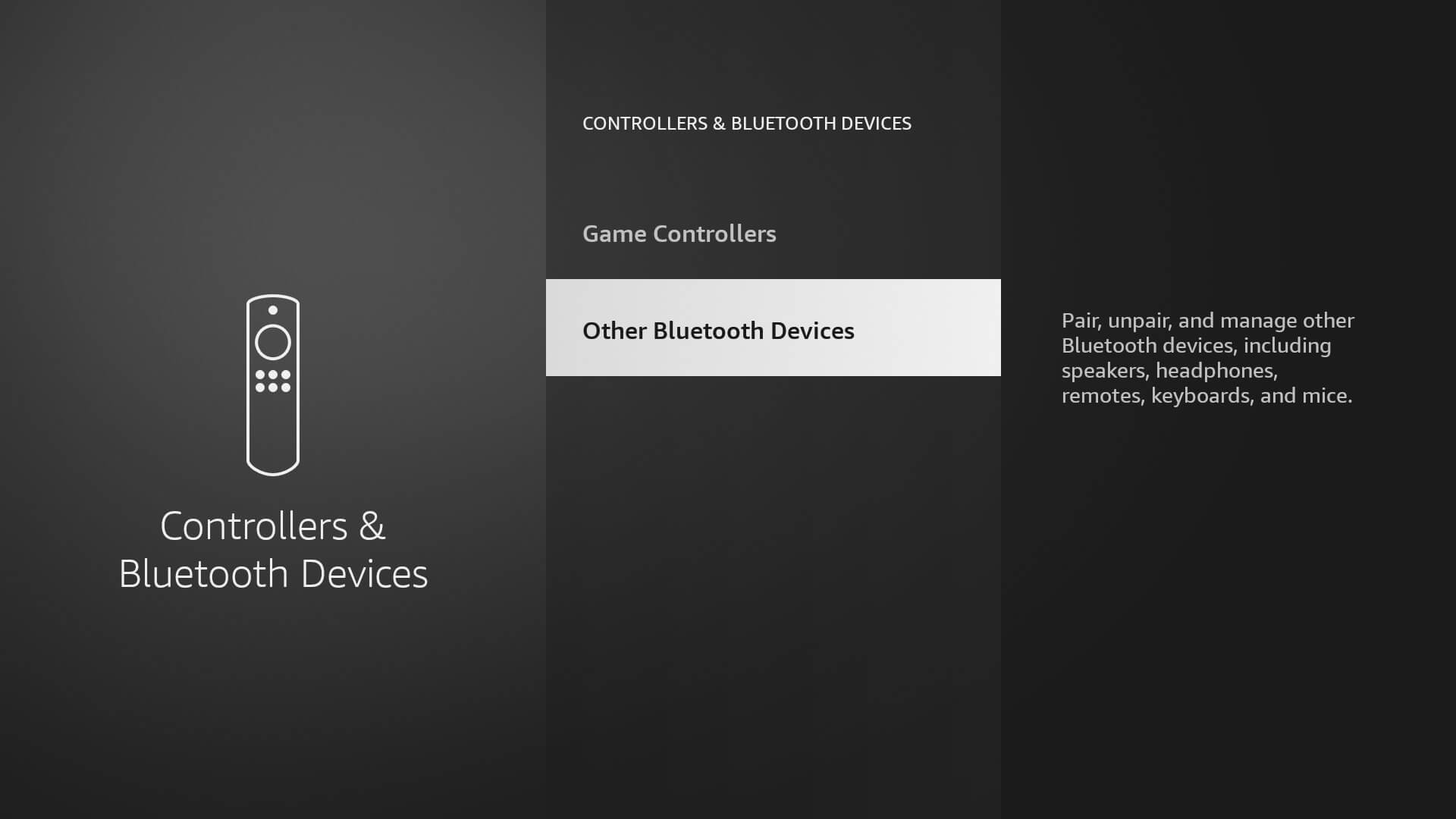
Start at the Fire TV Stick home screen. Navigate to the top menu and select Settings. Scroll right to find Controllers & Bluetooth Devices. Open this menu to access Bluetooth options. This area controls all wireless connections.
Adding New Devices
Inside the Bluetooth menu, select Other Bluetooth Devices. Choose Add Bluetooth Device to start searching. Make sure your headphones are in pairing mode. The Fire TV Stick will scan and list available devices.
Selecting Headphones
Look for your headphone’s name on the screen. Select it to connect. Wait a few seconds for confirmation. Your headphones are now paired and ready to use. Audio will stream directly to your Bluetooth device.
Connecting Airpods
Connecting AirPods to your Fire TV Stick lets you enjoy private, high-quality sound. The Fire TV Stick supports Bluetooth audio devices, including AirPods. Follow simple steps to pair your AirPods and start listening immediately. This guide helps you put your AirPods in pairing mode and connect them to your Fire TV Stick.
Putting Airpods In Pairing Mode
First, place your AirPods inside the charging case. Keep the lid open. Press and hold the small button on the back of the case. Hold it until the light on the front flashes white. This means your AirPods are in pairing mode. Now, your AirPods are ready to connect to the Fire TV Stick.
Pairing With Fire Tv Stick
Turn on your Fire TV Stick and go to the main menu. Select Settings. Choose Controllers & Bluetooth Devices. Click on Other Bluetooth Devices. Select Add Bluetooth Devices. Your Fire TV Stick will search for nearby Bluetooth devices. Choose your AirPods from the list. Wait a few seconds for the connection to complete. Once connected, audio will play through your AirPods.
Troubleshooting Tips
Connecting Bluetooth headphones to your Fire TV Stick should be simple. Sometimes, issues arise during pairing or use. Troubleshooting helps fix common problems fast. Below are easy tips to solve typical connection issues.
Headphones Not Showing Up
Make sure your headphones are in pairing mode. Check if Bluetooth is enabled on your Fire TV Stick. Restart your Fire TV Stick and headphones. Move them closer to avoid signal interference. Remove old paired devices that may block new connections.
Connection Drops
Weak Bluetooth signals cause frequent drops. Keep your headphones near the Fire TV Stick. Avoid walls or objects between devices. Turn off other Bluetooth gadgets nearby. Update your Fire TV Stick software to fix bugs. Reset your headphones if problems persist.
Audio Sync Issues
Audio delay can spoil your watching experience. Restart your Fire TV Stick and headphones. Check for software updates on both devices. Use wired headphones if delays continue. Lower the volume on other devices to reduce interference.

Credit: www.youtube.com
Using Multiple Devices
Connecting Bluetooth headphones to your Fire TV Stick lets you enjoy private sound. Many users want to connect more than one device for different needs. Understanding how to use multiple devices helps manage your connections easily. Let’s explore how the Fire TV Stick handles multiple Bluetooth devices.
Limitations On Device Connections
The Fire TV Stick supports only one Bluetooth audio device at a time. You cannot connect two pairs of headphones simultaneously. This means sharing audio with two sets of headphones is not possible. You can connect other Bluetooth devices like remotes or keyboards together. But only one Bluetooth headphone can play audio at once.
Switching Between Devices
Switching between Bluetooth headphones on the Fire TV Stick is simple. Disconnect the current headphones first from the Bluetooth menu. Then pair the new headphones by putting them in pairing mode. The Fire TV will detect the new device and connect automatically. This process allows quick changes between different headphones or speakers.
Alternative Audio Options
Finding alternative audio options for your Fire TV Stick can enhance your viewing experience. Not all Bluetooth headphones connect easily or directly. Exploring other audio setups helps you enjoy sound without hassle. Two practical alternatives include using Bluetooth transmitters and wired headphone connections.
Using Bluetooth Transmitters
Bluetooth transmitters allow Fire TV Stick to connect with multiple headphones. These devices plug into the TV’s audio output. They send audio signals wirelessly to any Bluetooth headphones. This method works well if your Fire TV Stick lacks built-in Bluetooth support. It also helps connect more than one headphone at once. Make sure to choose a transmitter compatible with your TV’s audio ports.
Wired Headphone Connections
Wired headphones remain a simple, reliable option for Fire TV audio. You can connect them directly to your TV’s headphone jack or audio out port. Use adapters if your TV has only digital audio outputs. This connection avoids lag or battery issues common in wireless devices. Although less flexible, wired connections deliver clear and stable sound quality. It’s a good choice for those who prefer consistent audio without pairing problems.

Credit: www.youtube.com
Credit: www.headphonecheck.com
Conclusion
Connecting Bluetooth headphones to your Fire TV Stick is simple and convenient. The Fire TV Stick supports one Bluetooth device at a time for audio. Access the settings menu, turn on Bluetooth, and pair your headphones quickly. This setup lets you enjoy private listening without disturbing others.
Remember to keep your headphones close during pairing for the best connection. Overall, using Bluetooth headphones enhances your Fire TV experience with easy, wireless sound.