
Are you wondering if the Fire Stick 4K can work with your TV? Whether you have the latest smart TV or an older model, this question is key before you buy.
Imagine unlocking a world of streaming apps like Netflix, Prime Video, and Disney+ on any screen you own. The good news is, the Fire Stick 4K is designed to be super flexible. But there are some important details you need to know to get the best experience.
Keep reading to find out exactly how you can use the Fire Stick 4K with your TV, what kind of setup you’ll need, and how to avoid common pitfalls. Your perfect streaming setup might be easier than you think!
Fire Stick 4k Compatibility
The Fire Stick 4K works with most TVs. It brings smart features to your screen. This device streams movies, shows, and apps easily. Compatibility depends on your TV’s ports and model. Understanding these details helps you set it up right.
It connects through HDMI, so your TV must support this. It works with both smart and non-smart TVs. Older TVs may need extra steps to function well. Let’s explore the requirements and differences.
Hdmi Port Requirement
The Fire Stick 4K plugs into an HDMI port. Without HDMI, it cannot connect or display content. Most modern TVs have at least one HDMI port. Check the back or side of your TV for an HDMI slot.
Some older or basic TVs may lack HDMI ports. In that case, the Fire Stick will not work. You cannot use adapters to replace HDMI for Fire Stick. HDMI is essential for video and audio signals.
Smart Vs Non-smart Tvs
The Fire Stick 4K turns a non-smart TV into a smart one. It adds streaming apps like Netflix, Hulu, and Prime Video. Smart TVs already have these apps built-in, but Fire Stick can add more.
Non-smart TVs rely entirely on the Fire Stick for internet streaming. A Wi-Fi connection is needed for the Fire Stick to work. The device uses its own interface regardless of TV type.
Older Tv Models
Older TVs may lack HDMI or have limited resolution support. The Fire Stick 4K requires HD or 4K compatible HDMI ports. Older models with only composite or component inputs will not work.
Some older TVs may show lower video quality with Fire Stick. It depends on the TV’s maximum resolution. If your TV supports HDMI but not HDCP 2.2, some content may not play.
Powering the Fire Stick requires a USB power source or adapter. Older TVs might not offer USB ports for power. Use a wall outlet with the provided adapter for reliable power.
Credit: screencloud.com
Setup Essentials
Setting up the Fire Stick 4K is simple with the right essentials. These basics ensure smooth installation and optimal streaming. Preparing ahead saves time and frustration.
Necessary Hardware
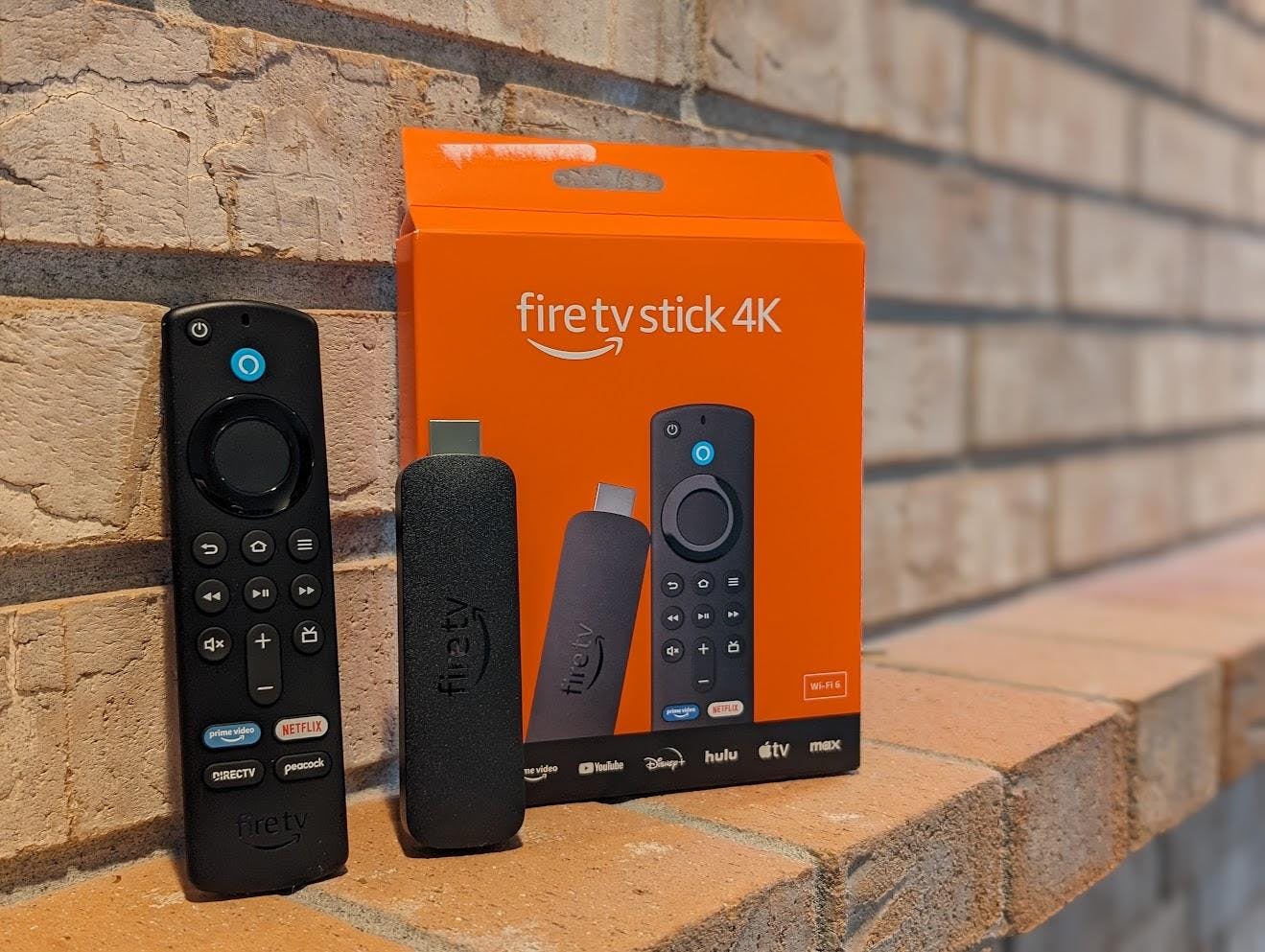
The Fire Stick 4K connects to any TV with an HDMI port. Most modern TVs have this port on the back or side. If your TV lacks HDMI, the Fire Stick will not work. You also need the Fire Stick remote for easy navigation and control.
Wi-fi Connection
A stable Wi-Fi connection is crucial for streaming videos and apps. The Fire Stick 4K supports both 2.4 GHz and 5 GHz networks. Connect to a strong Wi-Fi signal to avoid buffering or poor video quality. Without internet, the Fire Stick cannot stream content.
Power Supply
The Fire Stick 4K requires a power source via its USB cable and adapter. Plug the USB cable into the power adapter, then connect it to a power outlet. Powering through the TV’s USB port may not supply enough power. Use the adapter for the best performance.
Installation Process
The installation process for the Fire Stick 4K is simple and fast. It requires only a few steps to get your device ready for streaming. The Fire Stick works with almost any TV that has an HDMI port. Follow these easy steps to set up your Fire Stick 4K and start enjoying your favorite shows.
Connecting To Tv
First, plug the Fire Stick into an available HDMI port on your TV. Make sure the connection is secure. Then, connect the included power cable to the Fire Stick and plug it into a power outlet. Some TVs have a USB port that can power the Fire Stick, but using the power adapter is best for stability.
Selecting Hdmi Input
Turn on your TV and press the input or source button on your remote. Choose the HDMI port where you connected the Fire Stick. The Fire Stick home screen will appear after a few seconds. If the screen stays blank, try switching to the correct HDMI input again.
Remote Setup
Next, insert the batteries into the Fire Stick remote. The remote will pair automatically with the Fire Stick. Follow the on-screen instructions to connect the Fire Stick to your Wi-Fi network. Finally, sign in with your Amazon account to access apps and content. The setup is now complete.
Streaming Features
The Fire Stick 4K offers a wide range of streaming features that enhance your TV experience. It supports high-resolution video and fast streaming. This device works well on most TVs with an HDMI port. It connects easily to the internet, giving you access to many entertainment options. The streaming features make it simple to watch movies, shows, and live channels.
Popular Apps Supported
The Fire Stick 4K supports many popular streaming apps. You can use Netflix, Amazon Prime Video, Hulu, Disney+, and YouTube. These apps provide a large library of movies and TV shows. Many apps offer live TV and sports channels too. The device updates regularly to add new apps and features. This variety keeps your entertainment fresh and exciting.
Web Browsing Capability
The Fire Stick 4K allows basic web browsing with apps like Silk Browser. You can visit websites, watch videos, and check social media. Browsing is not as fast as on a computer or smartphone. Still, it is useful for quick searches or streaming videos not available in apps. The web browser adds flexibility to your TV usage.
User Interface
The user interface is simple and easy to use. It shows apps and content in a clear layout. Navigation is smooth using the Fire Stick remote. The home screen highlights your favorite apps and recommendations. Voice control with Alexa helps you find shows fast. The interface is designed to be friendly for all users.
Performance Factors
Performance factors affect how well the Fire Stick 4K works on any TV. These factors include the TV’s resolution, how the device adjusts settings, and your internet speed. Each plays a role in the viewing experience and streaming quality.
Resolution Limits
The Fire Stick 4K supports up to 4K resolution. Your TV must also support 4K to see the highest quality. If your TV only supports 1080p or lower, the Fire Stick will match that limit. This means the picture quality will depend on your TV’s maximum resolution.
Automatic Adjustments
The Fire Stick 4K changes its output to fit your TV’s capabilities. It adjusts resolution and frame rate automatically. This helps prevent issues like flickering or black screens. The device also adjusts color settings for the best picture quality on your TV.
Internet Speed Impact
Internet speed directly impacts streaming performance. Faster speeds allow smoother playback and higher quality streams. Slow internet can cause buffering and lower resolution. A stable Wi-Fi connection is essential for the Fire Stick 4K to work well on any TV.

Credit: screencloud.com
Troubleshooting Tips
Troubleshooting is important when using Fire Stick 4K on any TV. Issues may arise due to connection, app installation, or remote control problems. Understanding common fixes helps keep your streaming experience smooth. Follow these simple tips to solve common problems fast.
Connection Issues
Check if the Fire Stick is properly plugged into the TV’s HDMI port. Sometimes, the device may not fit well in tight spaces. Use the included HDMI extender if needed.
Make sure the TV input is set to the correct HDMI port. Restart both the Fire Stick and the TV to refresh the connection.
Verify your Wi-Fi network is stable and connected. Move the router closer or remove obstacles to improve the signal.
App Installation Problems
Ensure your Fire Stick has enough storage space for new apps. Delete unused apps to free up space.
Check your internet connection before downloading apps. A weak signal can cause installation errors.
Restart the Fire Stick to clear temporary glitches that block app installation.
Remote Control Fixes
Replace the remote’s batteries if it does not respond. Use fresh batteries for better performance.
Pair the remote again by holding the Home button for 10 seconds. This reconnects it to the Fire Stick.
Remove any obstacles between the remote and Fire Stick sensor. Keep the path clear for smooth operation.
Future-proofing Your Setup
Future-proofing your entertainment setup means choosing devices that keep working well over time. The Fire Stick 4K fits this idea by supporting updates and new features. It helps you enjoy the latest content and technologies without needing a new device soon.
Software Updates
Amazon regularly releases software updates for the Fire Stick 4K. These updates improve performance and add new apps. They also fix bugs and enhance security. This keeps your device running smoothly for years. The updates arrive automatically through your Wi-Fi connection. You do not need to do anything manually.
Compatibility With New Tvs
The Fire Stick 4K works with any TV that has an HDMI port. New TVs usually come with multiple HDMI ports, so connection is easy. It supports 4K resolution and HDR formats, matching the capabilities of modern TVs. This means your Fire Stick will deliver clear and vibrant images on new screens. It also works on older TVs, but without 4K quality.
Accessory Options
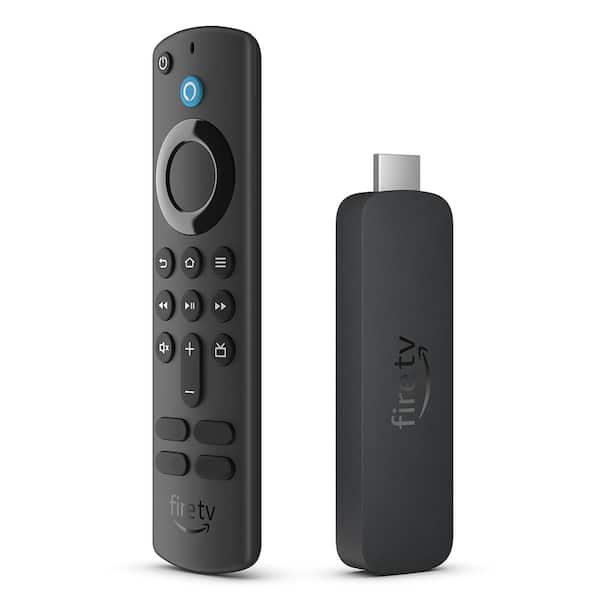
Many accessories enhance your Fire Stick 4K experience. You can add external speakers or soundbars for better audio. A compatible Ethernet adapter offers a more stable internet connection. Voice remotes and game controllers are also available. These accessories keep your setup flexible and ready for future needs.
Credit: www.homedepot.com
Conclusion
The Fire Stick 4K works with almost any TV that has an HDMI port. It easily turns old or non-smart TVs into smart ones. Just connect it, power it, and link to Wi-Fi. Streaming your favorite shows and movies becomes simple and quick.
No special setup or skills needed. This makes the Fire Stick 4K a flexible and handy choice. Enjoy more entertainment on almost any TV you own.