
Are you ready to unlock endless entertainment right on your TV? Connecting your Fire Stick is easier than you might think, and once it’s set up, you’ll have instant access to movies, shows, apps, and much more.
Whether you’re a tech newbie or just want a simple step-by-step guide, this article will walk you through every easy move to get your Fire Stick connected and streaming in no time. Keep reading—you’re just a few steps away from transforming your TV into a smart entertainment hub!
Connecting The Fire Stick
Connecting the Fire Stick to your TV is simple and quick. The Fire Stick plugs directly into your TV’s HDMI port. You need to ensure it has power and is connected correctly to enjoy streaming. Follow these steps for a smooth setup.
Plugging Into The Hdmi Port
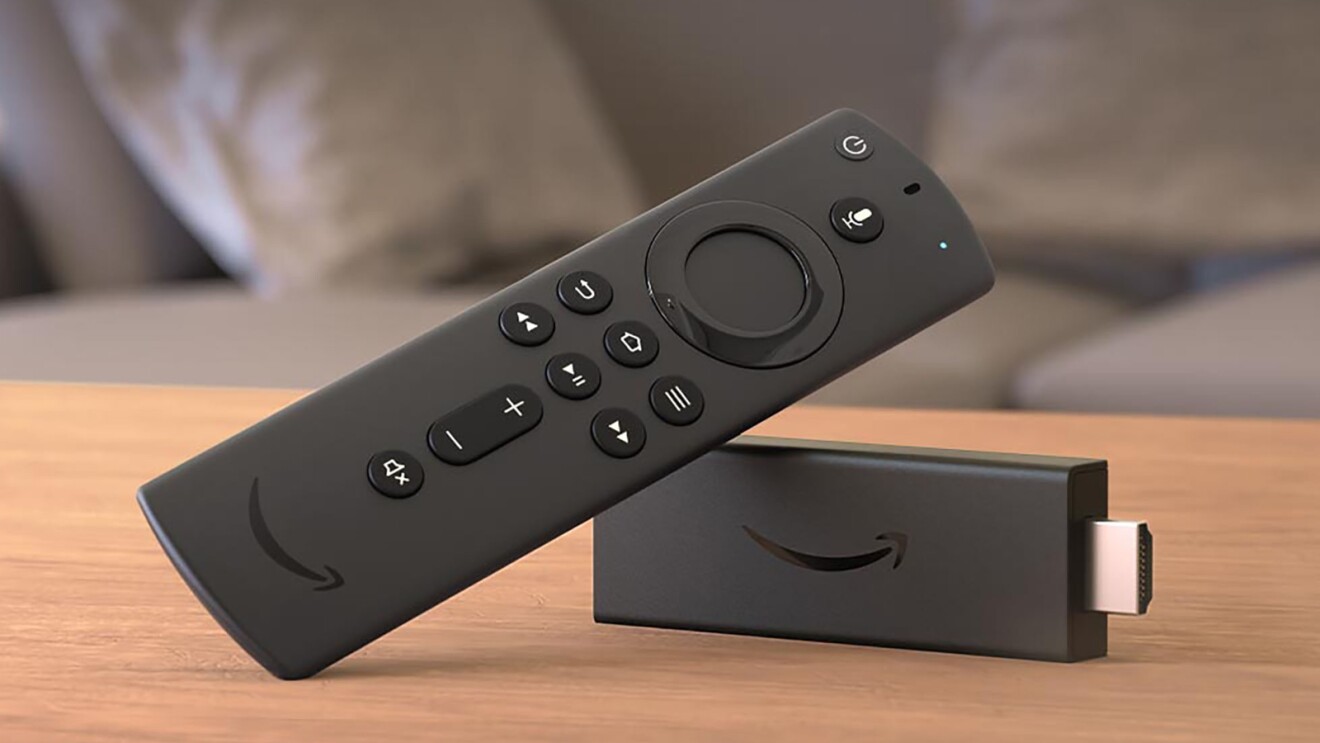
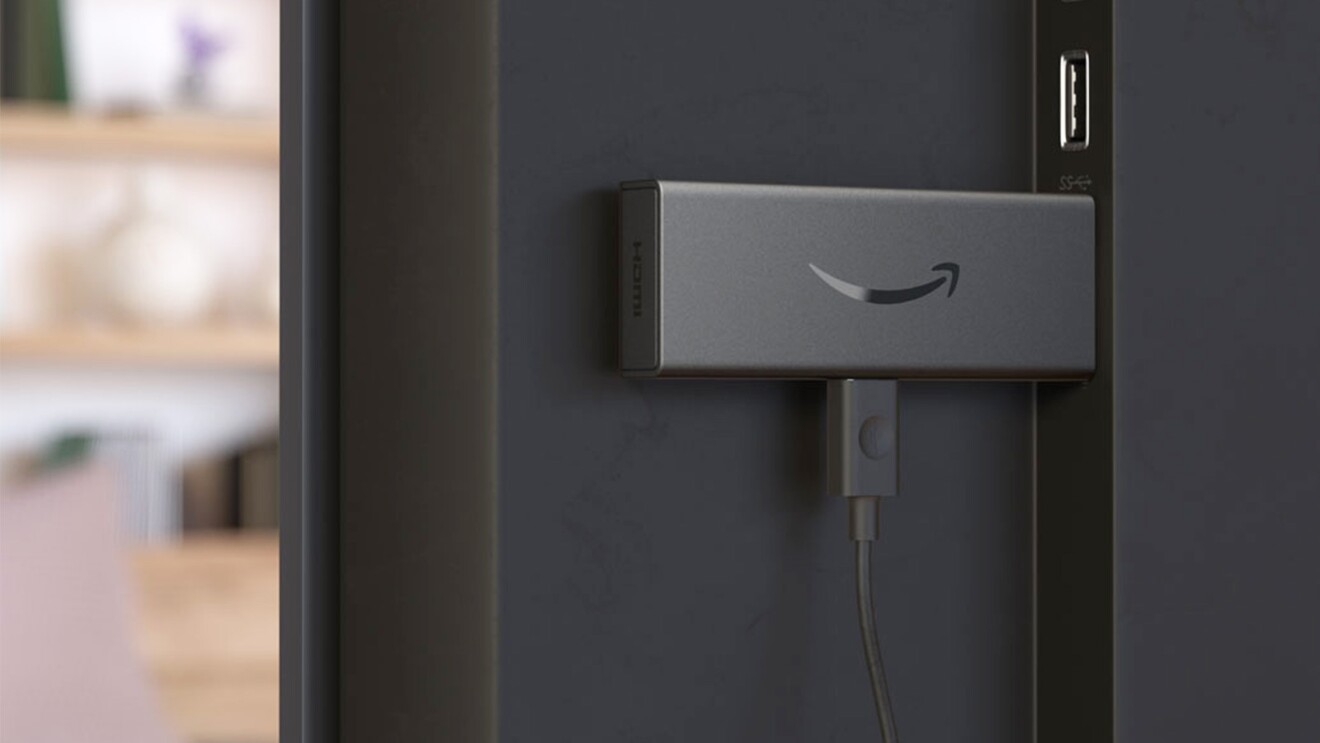
Locate an available HDMI port on your TV. Insert the Fire Stick firmly into the port. Make sure it is fully connected and not loose. This connection sends video and audio signals to your TV.
Using The Hdmi Extender
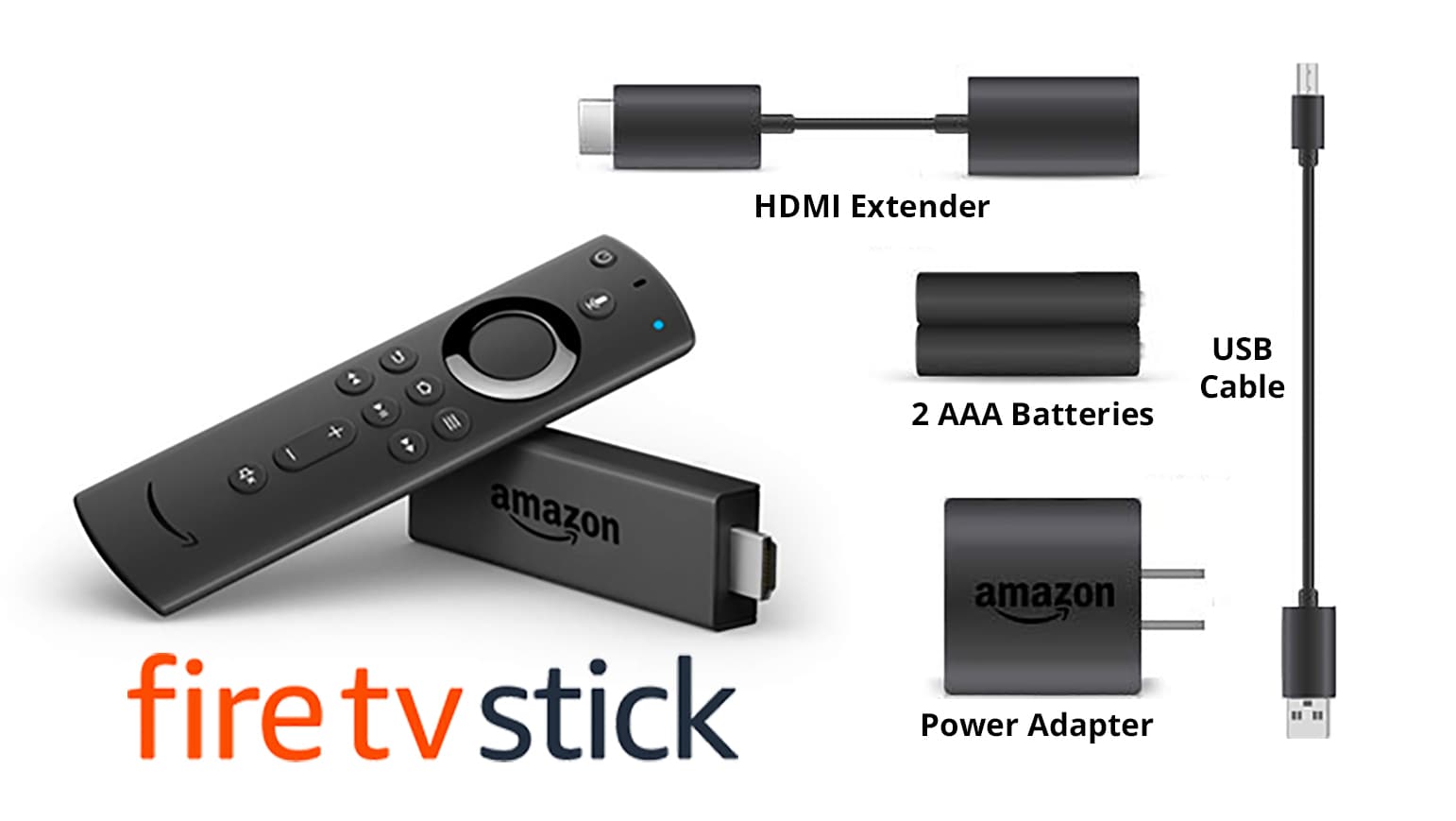
Use the HDMI extender if the port is hard to reach. The extender helps fit the Fire Stick in tight spaces. It also improves Wi-Fi reception by positioning the device better.
Powering The Device
Connect the power cable to the Fire Stick. Plug the other end into the power adapter. Insert the adapter into a wall outlet for steady power. The Fire Stick will light up and start automatically.
Credit: www.aboutamazon.com
Setting Up The Remote
Setting up the Fire Stick remote is the next important step after plugging in your device. The remote lets you control your Fire Stick and navigate the menus with ease. Without the remote, you cannot fully enjoy your streaming experience. This section explains how to insert batteries and pair the remote with your Fire Stick.
Inserting Batteries
Open the back cover of the Fire Stick remote. Insert two AAA batteries inside. Make sure to match the plus (+) and minus (–) signs correctly. Close the cover securely. The remote is now powered and ready to use.
Pairing With The Fire Stick
Turn on your TV and switch to the Fire Stick’s HDMI input. The Fire Stick will try to connect to the remote automatically. If it does not connect, press and hold the Home button on the remote for about 10 seconds. This action pairs the remote with your Fire Stick. Once paired, you can start using the remote to control the device.
Configuring The Tv Input
Configuring the TV input is a key step after connecting your Fire Stick. It ensures the TV shows the content from the Fire Stick. Without selecting the right input, the screen may remain blank or show other devices. This section explains how to pick the right HDMI source and fix common input problems.
Selecting The Hdmi Source
Turn on your TV using the remote. Press the “Input” or “Source” button. A list of input options will appear on the screen. Use the arrow keys to scroll through the list. Look for the HDMI port number where the Fire Stick is plugged in. For example, HDMI 1 or HDMI 2. Select that HDMI source by pressing “OK” or “Enter.” The Fire Stick home screen should now be visible. If not, try other HDMI inputs one by one.
Troubleshooting Input Issues
If the Fire Stick screen does not appear, check the HDMI connection. Make sure the Fire Stick is firmly plugged into the TV. Try unplugging and re-plugging it. Check if the Fire Stick is powered on by looking for a small light. Restart your TV to refresh the input list. Sometimes the TV remote’s input button may not respond well. Use the TV’s physical buttons if available. If the screen stays black, test the Fire Stick on a different TV. This helps to find out if the issue is with the Fire Stick or TV input. Also, try using the HDMI extender cable included with your Fire Stick. It can improve connection in tight spaces.
Credit: www.aboutamazon.co.uk
Initial Fire Stick Setup
Setting up your Fire Stick for the first time is simple. The initial setup lets you customize your device. It ensures your Fire Stick connects to your TV and the internet. Follow these easy steps to start streaming quickly.
Choosing Language
After powering on your Fire Stick, the first screen asks you to choose a language. Use the remote to scroll through the options. Select the language you understand best. This helps you navigate the menus and settings more easily.
Connecting To Wi-fi
The next step is connecting your Fire Stick to Wi-Fi. Choose your home network from the list shown on the screen. Enter your Wi-Fi password using the remote. A strong Wi-Fi connection is important for smooth streaming.
Signing Into Amazon Account
Sign in with your Amazon account to access apps and content. Enter your email and password on the screen. If you don’t have an account, create one directly on your Fire Stick. This step unlocks features like Prime Video and app downloads.
Optimizing Fire Stick Usage
Optimizing your Fire Stick usage enhances your streaming experience. The device offers many features to explore. Simple steps can help you get the most out of your Fire Stick.
Start by installing apps, then explore content. Adjust settings to fit your preferences. These actions make using the Fire Stick easier and more enjoyable.
Installing Apps
Open the Fire Stick home screen. Navigate to the “Apps” section using your remote. Browse or search for your favorite streaming apps. Select the app and click “Download” or “Get.” Wait for the app to install. Once done, open the app and sign in if needed. Repeat this process to add more apps. Installing apps lets you watch various shows and movies.
Exploring Content
Use the Fire Stick’s main menu to find content. Check “Home” for featured movies and shows. Visit “Categories” to browse genres like comedy, drama, or sports. Use the search function to find specific titles. Try voice search with the remote for faster results. Explore free and paid options available on the device. Enjoy personalized recommendations based on your watching habits.
Adjusting Settings
Open the Fire Stick settings from the home screen. Adjust display settings for the best picture quality. Change sound settings to match your audio setup. Manage your network to ensure a stable internet connection. Set parental controls to restrict content if needed. Customize the remote and accessibility features. Regularly check for software updates to keep the device running smoothly.
Troubleshooting Common Problems
Troubleshooting common problems helps you enjoy your Fire Stick without delays.
Some issues occur during setup or daily use. Fixing them is often simple.
Check these tips to solve frequent Fire Stick problems quickly.
Remote Not Responding
Check if the remote has working batteries. Replace them if needed.
Restart the Fire Stick by unplugging it and plugging it back in.
Pair the remote again by holding the Home button for 10 seconds.
Make sure no objects block the remote’s signal to the Fire Stick.
No Signal On Tv
Verify the Fire Stick is firmly plugged into the HDMI port.
Switch your TV to the correct HDMI input using its remote.
Try another HDMI port to rule out a faulty port on your TV.
Use the HDMI extender cable if the Fire Stick does not fit well.
Wi-fi Connectivity Issues
Check if your Wi-Fi network is working on other devices.
Move the Fire Stick closer to the router for a stronger signal.
Restart your router and the Fire Stick to refresh the connection.
Re-enter your Wi-Fi password carefully during setup on the Fire Stick.
Credit: www.reliancedigital.in
Conclusion
Connecting a Fire Stick to your TV is simple and quick. Just plug it into an HDMI port and power it up. Switch your TV to the right HDMI input using the remote. Follow the on-screen steps to connect to Wi-Fi and sign in.
Once set up, enjoy streaming your favorite shows and movies. This easy setup lets you start watching in minutes. No extra tools or skills needed. Now, your TV has more entertainment options than ever.