
To get local channels on a smart TV with an antenna, connect the antenna’s coax cable to the ANT IN / RF IN port on the back of the TV. Place the antenna near a window or as high as possible, then open your TV settings and choose Antenna/Air as the input source.
Run a channel scan so the TV can find local stations, then use the TV’s channel buttons to watch them like normal. If channels are missing, rotate the antenna slightly and rescan.
Choosing The Right Antenna
Choosing the right antenna is key to getting clear local channels on your smart TV. The right antenna helps you catch signals better and enjoy more channels without interruptions. Understanding different antenna types and features makes this choice easier.
Indoor Vs Outdoor Antennas
Indoor antennas are small and easy to set up inside your home. They work best in areas near broadcast towers. Outdoor antennas are larger and mount outside, often on rooftops. They catch signals from farther away and through obstacles like trees and buildings.
Directional Vs Omnidirectional
Directional antennas focus on signals from one direction. They offer strong reception but need aiming toward broadcast towers. Omnidirectional antennas catch signals from all around. They work well if towers are in different directions or if you move the antenna often.
Factors To Consider
Distance from TV towers matters a lot. The farther you are, the stronger antenna you need. Obstacles like hills, trees, and buildings can block signals. Check your area’s signal strength and tower locations online. Consider antenna size, ease of installation, and your budget too.
Setting Up The Antenna
Setting up an antenna for your smart TV allows you to watch local channels without extra fees. The process is simple and takes only a few steps. Proper setup ensures the best picture and sound quality. Follow these tips to get started quickly and enjoy free local broadcasts.
Finding The Best Location
Place the antenna near a window or high on a wall. Avoid metal objects and thick walls that block signals. Try different spots to find where the signal is strongest. Outdoor antennas usually get better reception than indoor ones.
Connecting To The Tv
Connect the antenna cable to the TV’s antenna input port. This port is often labeled “ANT IN” or “RF IN.” Use a coaxial cable for the best connection. Turn on your TV and open the channel scan menu to detect local channels.
Adjusting For Signal Strength
Move the antenna slowly to improve signal quality. Watch the TV screen as channels load during the scan. Small adjustments can make a big difference. Stop moving the antenna once the most channels appear clearly.
Configuring Your Smart Tv
Configuring your smart TV to receive local channels with an antenna is a simple process. It involves accessing the TV’s built-in tuner, scanning for channels, and saving them for easy viewing. This step-by-step setup ensures you catch all available local broadcasts without extra costs.
Accessing The Tv’s Tuner
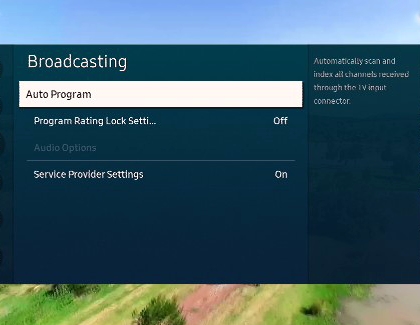
Start by turning on your smart TV and opening the settings menu. Look for options like “Channels,” “Broadcast,” or “Tuner.” Select the tuner setting to prepare your TV for antenna signals. This setting allows your TV to search for over-the-air channels.
Make sure your antenna is connected to the TV’s antenna input. Without this, the tuner cannot find any channels. Some TVs might ask you to choose between cable or antenna; pick “Antenna” or “Air” to continue.
Running The Channel Scan
After selecting the antenna option, find the “Channel Scan” or “Auto Scan” button. This starts the TV’s search for all available local channels. The scan takes a few minutes but works quietly in the background.
The TV will detect and store signals from local broadcasters. Avoid moving or turning off your TV during the scan. Interruptions can cause missed channels or incomplete scans.
Saving And Organizing Channels
Once the scan finishes, your TV will list all found channels. Save this list so you don’t lose your channels later. Most TVs save channels automatically, but double-check this to be sure.
You can also organize channels by favorite or order. Use the remote control to move important channels to the top. This makes finding your preferred stations easier during viewing.
Credit: www.scala-santa.com
Troubleshooting Signal Issues
Signal problems can stop you from watching local channels on your smart TV. These problems often cause poor picture quality or no channels at all. Fixing these issues needs some simple steps. Follow these tips to get a better signal and enjoy your shows without interruption.
Improving Reception
Place your antenna near a window or higher up on a wall. Avoid metal objects and thick walls that block signals. Try moving the antenna slowly to find the best spot. Small changes in position can make a big difference in signal strength.
Checking Connections
Check all cables connected to your antenna and TV. Make sure cables are tight and not damaged. Loose or broken wires reduce signal quality. Replace old or worn cables to improve connection. Clean the cable ends to remove dust or dirt.
Using Signal Boosters
Signal boosters increase weak signals from your antenna. Use a booster if channels come and go or the picture breaks up. Install the booster between the antenna and TV. Choose a booster that fits your antenna type and signal strength.
Tips For Optimal Viewing
Getting the best picture and sound from your antenna on a smart TV is important. Small steps can make a big difference in how clear your local channels look and sound. Follow these tips for optimal viewing to enjoy your favorite shows without interruptions.
These simple actions help keep your TV ready for the best signal and quality.
Regularly Rescanning Channels
Signals can change over time. Rescanning your channels often helps your TV find new or moved stations. This process updates your channel list and removes weak signals. Set a reminder to rescan every few weeks. It ensures you do not miss any local broadcasts.
Updating Tv Firmware
Smart TVs need software updates to work well. Firmware updates fix bugs and improve signal handling. Check your TV settings for updates regularly. Keeping your TV software current helps it perform better with antennas.
Combining Antenna With Streaming Services
Use an antenna for local channels and streaming for other shows. This combo gives you more choices without extra cost. Streaming apps can fill gaps where antenna signals are weak. Try both to get the most from your smart TV.
Credit: www.youtube.com
Conclusion
Getting local channels on your smart TV with an antenna is simple. Just connect the antenna to your TV and scan for channels. This way, you can watch news, sports, and shows without extra cost. A good antenna boosts signal strength and picture quality.
Try placing the antenna near a window for better reception. Enjoy local content easily and save money on cable. Start watching your favorite local channels today with a few easy steps. No need for complicated setups or subscriptions.