
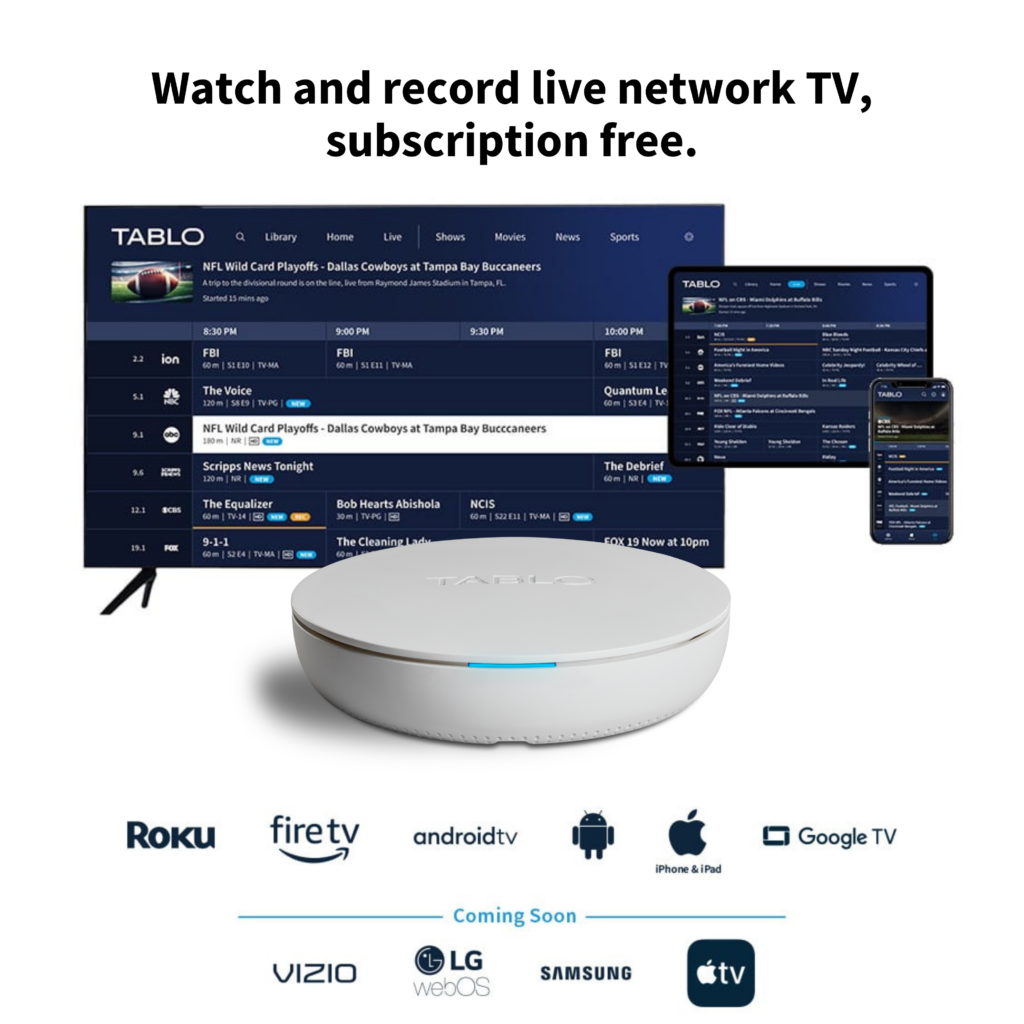
You can record antenna TV by using a DVR or tuner device that connects to your antenna and saves shows to internal storage or an external hard drive. Options include an OTA DVR box, a network tuner with DVR features, or a USB TV tuner connected to a computer.
Once it’s set up, you scan for channels, pick a show from the guide, and schedule recordings just like cable. Some devices can also stream your recorded shows to other TVs and phones over Wi-Fi.
Choosing The Right Equipment
Choosing the right equipment makes recording antenna TV simple and effective. The right tools capture shows clearly and store them safely. This section explains the main options to help you record antenna TV easily.
Types Of Antenna Tvs
Antenna TVs receive signals directly from broadcast towers. Some TVs have built-in tuners for antenna signals. Others need external antennas connected to them. Modern smart TVs often include digital tuners. Older models might require a converter box. Choose a TV or device that supports digital signals for the best quality.
Best Dvrs For Antenna Tv
DVRs (Digital Video Recorders) save TV shows to watch later. Some DVRs work well with antenna signals. They connect between your antenna and TV. These DVRs let you pause, rewind, and record live TV. Look for models that support over-the-air broadcasts. Storage size matters. A larger hard drive saves more shows. Simple controls help beginners use the device easily.
Using External Recording Devices
External devices can also record antenna TV signals. USB TV tuners plug into computers or laptops. They turn the device into a recorder. Some media players have recording options with antenna input. These devices often need extra software to manage recordings. Check compatibility with your antenna and TV before buying. External recorders add flexibility for saving your favorite programs.
Credit: www.thefreetvproject.org
Setting Up Your Antenna Tv For Recording
Setting up your antenna TV for recording lets you save your favorite shows. You can watch them anytime without missing a moment. This process is simple and requires only a few steps. Follow these instructions to connect and configure your system correctly.
Connecting Antenna To Dvr
Start by connecting your antenna to the DVR. Use a coaxial cable for the best signal. Plug one end into the antenna output. Connect the other end to the DVR’s antenna input. Make sure connections are tight to avoid signal loss. Power on your DVR and antenna to check the signal.
Configuring Recording Settings
Access the DVR menu to set recording preferences. Choose video quality based on your storage space. Select the channel you want to record from. Set the recording duration to cover the entire show. Adjust audio settings for clear sound. Save your settings before exiting the menu.
Scheduling Recordings
Open the DVR’s schedule menu to plan recordings. Pick the date and time for each program. Use the guide to find shows on your antenna channels. Set the start and end times slightly before and after the show. Confirm the schedule to avoid missing any content. You can edit or delete schedules anytime.
Recording Without A Dvr
Recording antenna TV without a DVR is possible with simple tools. Many people want to save their favorite shows but don’t own a DVR. There are easy ways to record TV using devices you may already have. This guide explains how to do it step by step.
Using A Pc With Tv Tuner
A PC with a TV tuner card can capture antenna TV signals. The tuner connects to your antenna and your computer. It lets you watch and record live TV shows directly on your PC. Many tuners support high-definition channels for clear video quality. This method is affordable and gives you control over your recordings.
Once connected, use the PC to schedule recordings or record shows live. It is a flexible option for those who spend time on their computers.
Recording Apps And Software
Various apps and software help record antenna TV without a DVR. Programs like Windows Media Center or third-party apps work well. They allow you to set recording times and save shows automatically. Most of these apps have simple interfaces for easy use. Some apps even let you edit recordings or add bookmarks.
Choose a program that matches your PC and tuner model. This ensures smooth recording and playback of your favorite shows.
Storage Options
Recorded TV shows need space to save files. External hard drives and USB flash drives offer good storage options. These devices connect to your PC or tuner easily. They provide enough room for many hours of TV recordings. Cloud storage is another choice for saving shows online.
Pick a storage method that fits your needs and budget. Always check available space before starting a new recording.

Credit: cordcutting.com
Tips For Quality Recordings
Recording antenna TV can bring great shows right to your device. Quality recordings depend on a few key factors. Paying attention to these tips will help you get clear, sharp videos. The right setup makes all the difference. Here are some important tips for quality recordings.
Signal Strength And Placement
Strong signal strength is crucial for good recordings. Place your antenna where it receives the clearest signal. Higher locations often catch better signals. Avoid walls and metal objects that block signals. Adjust the antenna direction for the best reception. Test different spots until the picture looks clear.
Avoiding Interference
Electronic devices can cause interference with your antenna signal. Keep your antenna away from routers, microwaves, and cordless phones. Cables should be tightly connected and not tangled. Use shielded coaxial cables to reduce noise. Turn off nearby devices if the picture breaks up. Clear signals mean better recordings.
Managing Storage Space
Recordings need enough storage to save files. Check your device’s available space before recording. Delete old or unwanted videos to free up room. Use external drives or memory cards for extra space. Choose lower video quality if storage is limited. Proper space management prevents recording interruptions.
Troubleshooting Common Issues
Troubleshooting common issues can help you enjoy smooth antenna TV recording. Problems may stop recordings or affect playback. Knowing simple fixes saves time and frustration. This guide covers key problems and solutions.
Recording Failures
Recording failures happen when your device does not save the show. Check if the antenna signal is strong. Weak signals cause failed recordings. Make sure your recording device has enough storage space. Low storage stops new recordings. Restart your device to clear any temporary errors. Check the recording schedule for correct times and channels.
Playback Problems
Playback problems occur when recorded shows won’t play properly. Try restarting the device. This can fix many playback errors. Check if the file format is supported. Some devices cannot play all video types. Clear the device’s cache to improve performance. Update your device software to the latest version for better compatibility.
Device Compatibility
Not all devices support antenna TV recording. Verify your device has a built-in tuner or supports external tuners. Some smart TVs or DVRs need special software for recording. Confirm your antenna and recording device work together. Use recommended cables and connections. Check the user manual for compatibility details.

Credit: recorder.easeus.com
Conclusion
Recording antenna TV is easier than many think. Choose the right device for your needs. Set it up clearly to avoid signal issues. Remember to check storage space before recording. Regularly update your equipment for better quality. Enjoy your favorite shows anytime you want.
Stay patient and try different settings if needed. Recording antenna TV lets you watch on your schedule. Simple steps make a big difference in your viewing experience.